Have you ever wanted to make your Scratch project sound amazing? Maybe you want background music for your game, a repeating beat for an animation, or a soundtrack that plays endlessly while your characters move.
To do all of this, you need one powerful Scratch skill:
Making a song loop.
In this easy, kid-friendly, and educational guide, you’ll learn exactly how to make sounds and music loop in Scratch, how loops work, the best blocks to use, and how to avoid common mistakes beginners make. By the end of this blog, you’ll be able to create your own looping music for any Scratch project you build.
Let’s get started!
What is a song loop in Scratch?
A song loop is when a sound or piece of music plays over and over without stopping. Instead of playing once and ending, the sound repeats automatically.
Kids and beginners usually want looping music for:
- games
- animations
- stories
- background ambience
- rhythm projects
- dance and music videos
Looping makes your project feel polished and professional—just like a real video game.
Why looping music is important in Scratch projects
Adding a music loop can completely change the mood of your project. It:
- keeps the project lively
- makes scenes feel exciting
- keeps players engaged
- supports storytelling
- adds emotions and energy
Think of your favourite games: almost all of them have background music that loops. Scratch works the same way!
How sound works in Scratch
Before making a loop, you need to understand Scratch’s sound tools.
Scratch provides two main sound blocks:
1. “play sound until done”
This block plays the entire sound and waits until it finishes before the code continues.
2. “start sound”
This block begins the sound immediately and allows other code to run at the same time.
Important tip:
For looping background music, “play sound until done” is almost always the better choice—because it waits for the sound to finish before repeating.
Step-by-step: how to make a song loop in Scratch
Now let’s learn the easiest and most popular way to loop a song.
Step 1: Choose or upload a sound
Go to the Sounds tab.
You have three options:
✔ Choose a sound from the Scratch library
Scratch has many categories such as:
- loops
- effects
- beats
- music
✔ Upload your own music
You can upload MP3 or WAV files (great for custom background music).
✔ Record your own voice or beat
Use a microphone and make your own sound!
Once your sound is selected, name it something simple like “music”.
Step 2: Use a forever loop
Go to the Control category and drag out a forever block.
forever
    (your code)
end
The forever block repeats everything inside it endlessly—perfect for music loops.
Step 3: Add your sound block
Inside the forever loop, add:
play sound [music] until done
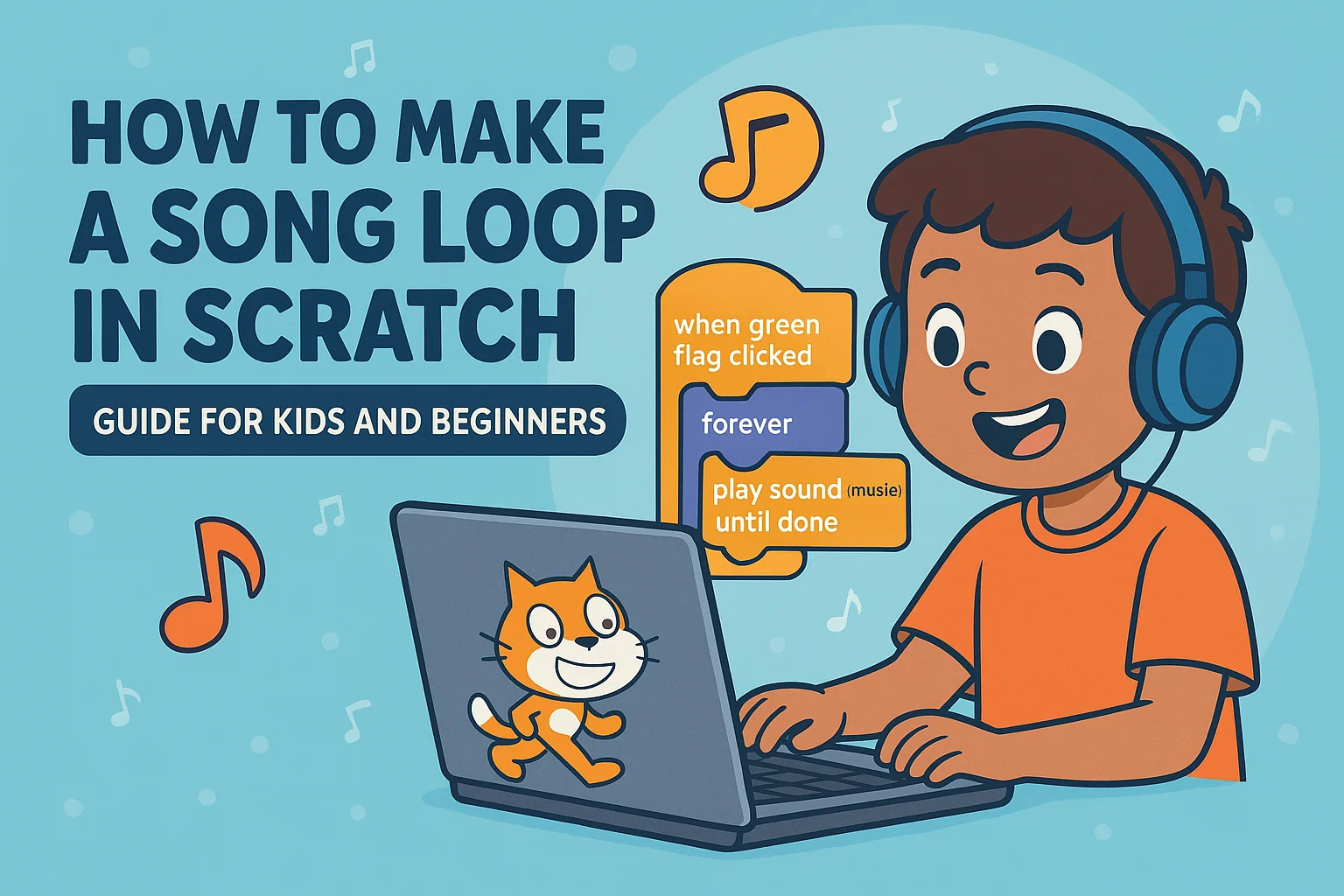
Your code should look like this:
when green flag clicked
forever
    play sound [music v] until done
end
This will play your music again and again without stopping.
Why this works
The block “play sound until done” waits for the song to finish before looping again. That means:
- the loop is smooth
- no overlapping sounds
- no messy echoes
- timing stays perfect
This is the most stable way to loop long songs in Scratch.
Alternative method: using “start sound”
If you prefer to control timing yourself, you can do this:
when green flag clicked
forever
    start sound [music v]
    wait (10) seconds
end
But you must change the number of seconds to match the exact length of your sound. Otherwise, your sound will overlap or leave gaps.
This method is best for short beats, not full songs.
How to loop short sounds into a rhythm
Short sound loops are fun for making:
- beats
- drums
- background patterns
- dance music
Example:
when green flag clicked
forever
    play sound [drum beat v] until done
    play sound [clap v] until done
    play sound [drum boom v] until done
end
This creates a repeating beat pattern.
How to start or stop music with buttons
Sometimes you want music only when players press a key or click a sprite.
Start music:
when this sprite clicked
forever
    play sound [music v] until done
end
Stop music:
when this sprite clicked
stop all sounds
Kids love creating music on/off buttons for their games.
How to loop multiple songs (playlist feature)
You can make your own playlist in Scratch by combining loops and sequencing.
Example:
when green flag clicked
forever
    play sound [song1 v] until done
    play sound [song2 v] until done
    play sound [song3 v] until done
end
This plays each song one after another—just like a real game soundtrack.
How to loop only during gameplay
Want music only when the game is running?
Use a variable:
Step 1: Make a variable called “music on”
Step 2: Turn the variable on during gameplay:
set [music on v] to [1]
Step 3: Turn it off when the game ends:
set [music on v] to [0]
stop all sounds
Step 4: Add conditions to your music loop:
when green flag clicked
forever
    if <(music on) = 1> then
        play sound [music v] until done
    end
end
This gives you full control.
Avoid these common mistakes (beginner tips)
Many beginners run into problems when making loops. Here’s how to avoid them:
❌ Mistake 1: Using “start sound” inside a forever loop
This causes echoing or overlapping sounds.
✔ Fix: Use “play sound until done.”
❌ Mistake 2: Forgetting a forever loop
The song plays once and stops.
✔ Fix: Always repeat inside “forever.”
❌ Mistake 3: Adding multiple forever loops with music
Scratch will play them on top of each other.
✔ Fix: Use one music loop per project.
❌ Mistake 4: Using huge MP3 files
Large files can make Scratch lag.
✔ Fix: Use shorter loops or compress audio.
Fun projects kids can try using music loops
Once you learn looping, here are creative projects to build:
★ Dance Party Project
Make characters dance to repeating beats.
★ Adventure Game with Background Music
Play music while players explore the world.
★ Rhythm Game
Play sounds on key press and loop a background beat.
★ Music Animation
Move characters and change colors to the loop.
★ Interactive DJ Booth
Let users switch music loops with buttons.
Educational benefits of making music loops in Scratch
When kids loop songs in Scratch, they learn:
✔ sequencing
Understanding order of events.
✔ timing
Matching music to actions.
✔ problem-solving
Fixing overlaps or sound gaps.
✔ coding logic
Using loops, events, and control blocks.
✔ creativity
Building unique rhythm and animation experiences.
Scratch combines art + math + logic + music, making learning fun and meaningful.
Conclusion: looping music makes your Scratch projects come alive
Now you know how to:
- choose sounds
- add loops
- use the right blocks
- avoid common mistakes
- create playlists
- build interactive music features
Adding a looping song is one of the easiest ways to make your Scratch projects feel polished and exciting. Whether you’re making a game, animation, or rhythm challenge, a music loop takes your creativity to the next level.