Introduction
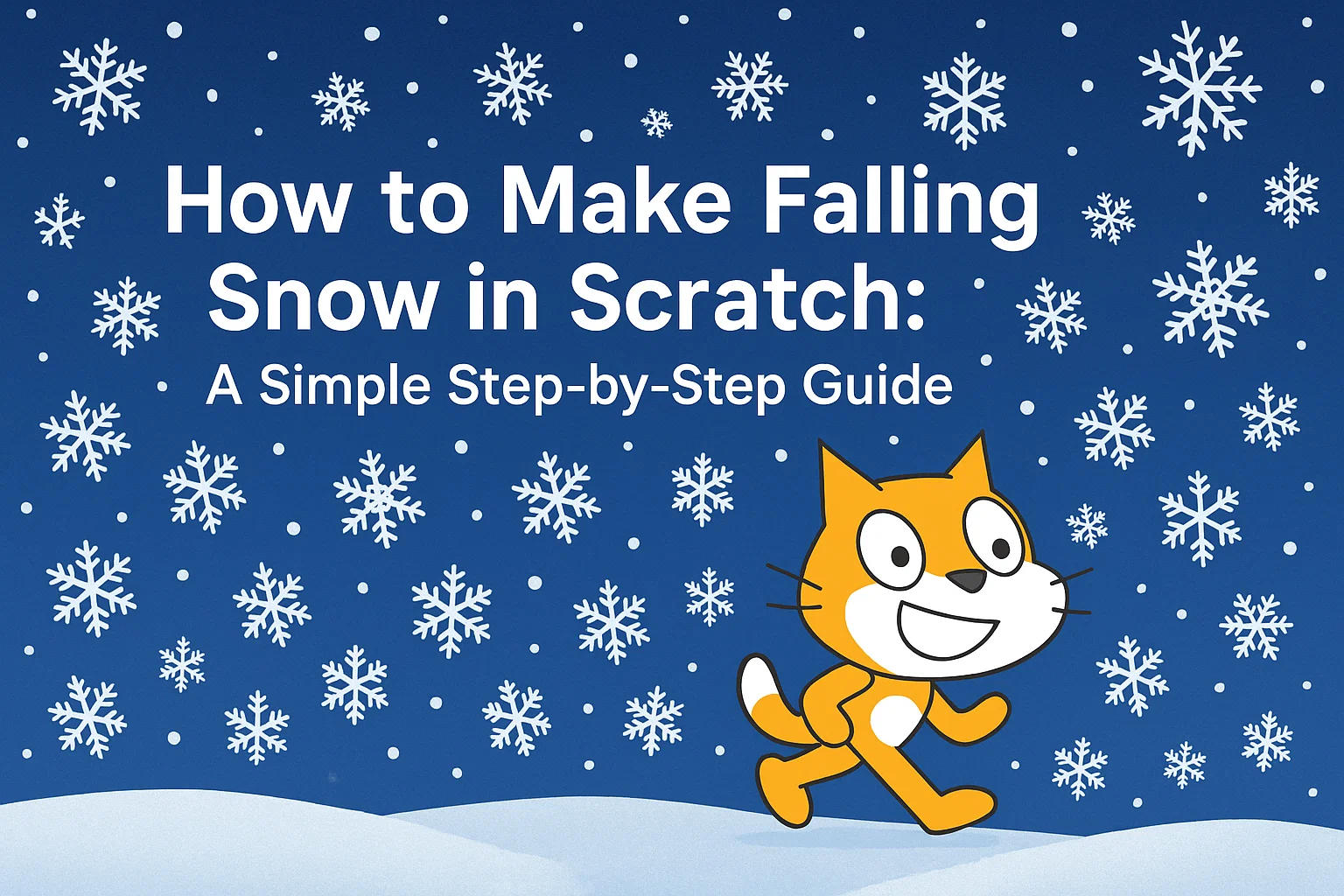
Creating falling snow in Scratch is a fun and magical way to learn animation and coding. Whether you’re making a winter scene, a holiday card, or a snowy game, adding falling snow instantly makes your project look beautiful and alive.
In this guide, you’ll learn exactly how to make snowflakes fall smoothly — using loops, clones, and random positions. Even beginners can follow along!
⛄ What You Will Learn?
By the end of this tutorial, you will understand how to:
- Create a snowflake sprite
- Make snowflakes fall from the top of the screen
- Use random positions for natural snowfall
- Clone snowflakes for continuous falling
- Add effects like size change or speed variation
Let’s start Scratch coding our winter wonderland!
Step By Step Guide to create a Snowflake Sprite
🎨 Step 1: Create or Choose a Snowflake Sprite
You can choose from Scratch’s built-in sprites or draw your own.
Option A: Use Scratch’s Snowflake Sprite
- Click Choose a Sprite
- Search for “snowflake”
- Pick one you like
Option B: Draw Your Own Snowflake
- Click Paint
- Use white or light-blue color
- Draw a small snowflake shape
Tip: Snowflakes should be small — around 20–30 size — to look realistic.
🌨️ Step 2: Set the Starting Position
We want each snowflake to:
- Start at the top
- Fall downward
Use this block to start:

when green flag clicked

go to x: (pick random -240 to 240) y: 180
This places the snowflake at a random place at the top of the screen.
🌬️ Step 3: Make the Snowflake Fall Down
Now let’s make the snowflake move down repeatedly:
forever

  change y by -5

end
But this makes only ONE snowflake fall.
We want LOTS of snowflakes!
That’s where clones come in.
❄️ Step 4: Create Many Snowflakes Using Clones
To generate lots of falling snowflakes:
when green flag clicked

repeat 50

  create clone of myself

  wait 0.1 seconds

end
This makes 50 snowflakes fall one after another.
🌧️ Step 5: Code Each Clone to Fall
Every clone should appear at a random position and start falling:
when I start as a clone

go to x: (pick random -240 to 240) y: 180

repeat until <y < -180>

  change y by - (pick random 3 to 6)

  change x by (pick random -1 to 1) // makes drifting effect

end

delete this clone
This makes snowflakes:
- Fall at different speeds
- Drift sideways
- Restart from the top when they reach the bottom
Perfect for natural snowfall!
✨ Step 6: Add a Nice Drifting Snow Effect (Optional)
To make it extra magical, add:
A slight rotation
turn (pick random -4 to 4) degreesA glow effect
set color effect to (10)Different sizes
set size to (pick random 20 to 50) %Each snowflake becomes unique, like in real life!
🎄 Step 7: Add a Winter Background
Click Choose a Backdrop
Select:
- Winter
- Snowy forest
- Frozen lake
- Night sky
Now your falling snow looks beautiful!
🧊 Step 8: Add Infinite Snowfall
If you want never-ending snow, replace the repeat loop with this:
forever

  create clone of myself

  wait 0.1 seconds

end
Your Scratch project now has continuous, magical snowfall!
❄️ Complete Snowflake Code (Final Version)
when green flag clicked

hide

forever

  create clone of myself

  wait 0.1 seconds

end


when I start as a clone

show

set size to (pick random 20 to 50) %

go to x: (pick random -240 to 240) y: 180

repeat until <y < -180>

  change y by - (pick random 3 to 6)

  change x by (pick random -1 to 1)

  turn (pick random -3 to 3) degrees

end

delete this clone
Copy this code into your sprite and enjoy your snow!
🎉 Final Thoughts
Making falling snow in Scratch is a great beginner-friendly animation project. It teaches important coding concepts like:
- Randomness
- Loops
- Clones
- Motion
- Effects
And the result looks amazing — perfect for winter-themed games, holiday cards, and animated stories. So what are you waiting for, Book a free Trail Class on Codingal.